How to use shareMessage
Introduction
The shareMessage function implemented in Mobage SDK, allows the user to recommend the game to a friend by selecting his/her favor social service.
Notice that this API has been deprecated from Mobage SDK 1.4.7 .
The information and images below are from October 2013. Please notice that any content below can below could be changed in the future.
Supported Services
Currently shareMessage supports the following services
-
LINE
-
Twitter
-
Mail
Implementation
The following explains how you can implement shareMesasage for Native SDK.
| OS | import | Function name |
|---|---|---|
| Android | com.mobage.android.social.jp.Service | shareMessage(message, title, pictureUrl, onComplete) |
| iOS | MBGSocialJPService.h | + shareMessage:title:pictureUrl:onDismiss: |
Android
Service.shareMessage(
		"Lets play Blood Brothers together !! http://sp.mbga.jp/_game_launch?game_id=12012945&cid=29",
		"mobage",
		"",
		new OnShareMessageComplete() {
			@Override
			public void onDismiss() {
			}
		});
iOS
[MBGSocialJPService
 shareMessage:@"Lets play Blood Brothers together !! http://sp.mbga.jp/_game_launch?game_id=12012945&cid=29"
 title:@"mobage"
 pictureUrl:@""
 onDismiss:^{

 }];
The following explains how you can implement shareMesasage for Unity SDK.
| Function name | MobageJPService.shareMessage(message, title, pictureUrl, onDialogComplete); |
MobageJPService.shareMessage(
		"Lets play Blood Brothers together !! http://sp.mbga.jp/_game_launch?game_id=12012945&cid=29",
		"mobage",
		"",
		onDismiss);
public void onDismiss() {
}
Android Specifications
Top screen for shareMessage function
By selecting any of the services below, it will confirm the login status of Mobage browser version. The following login confirmation screen will show incase the user is not logged in.
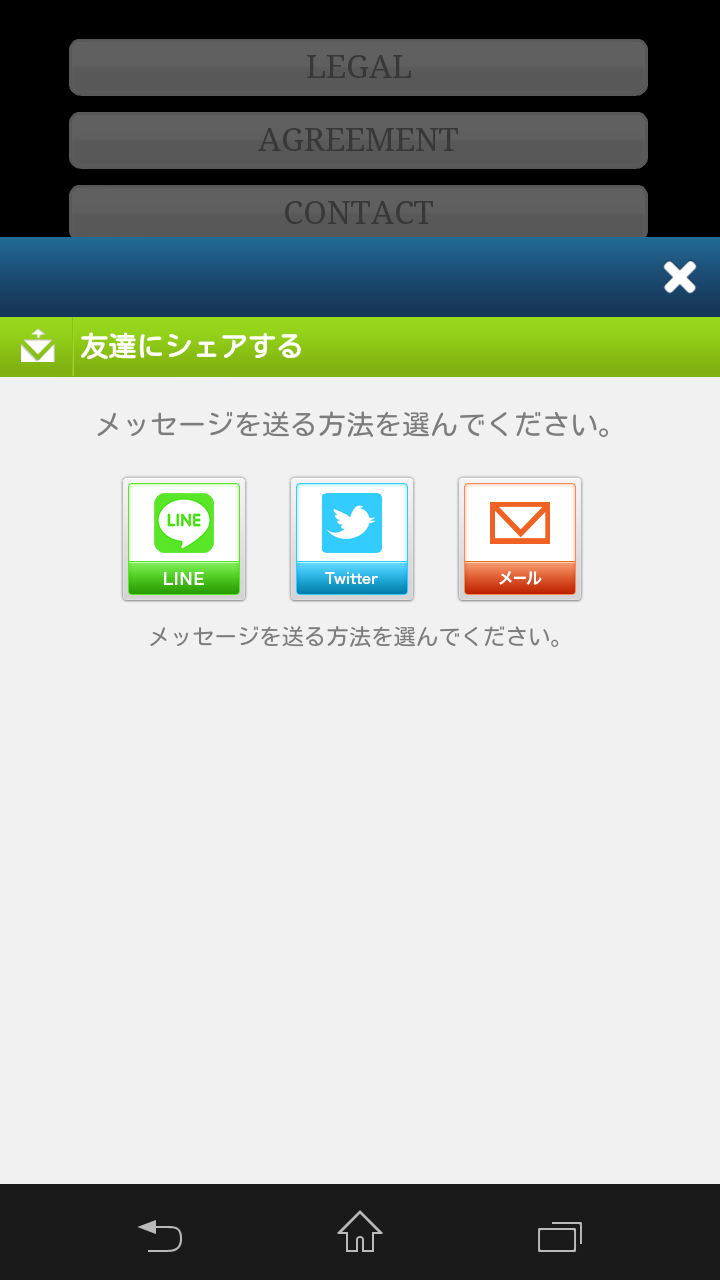
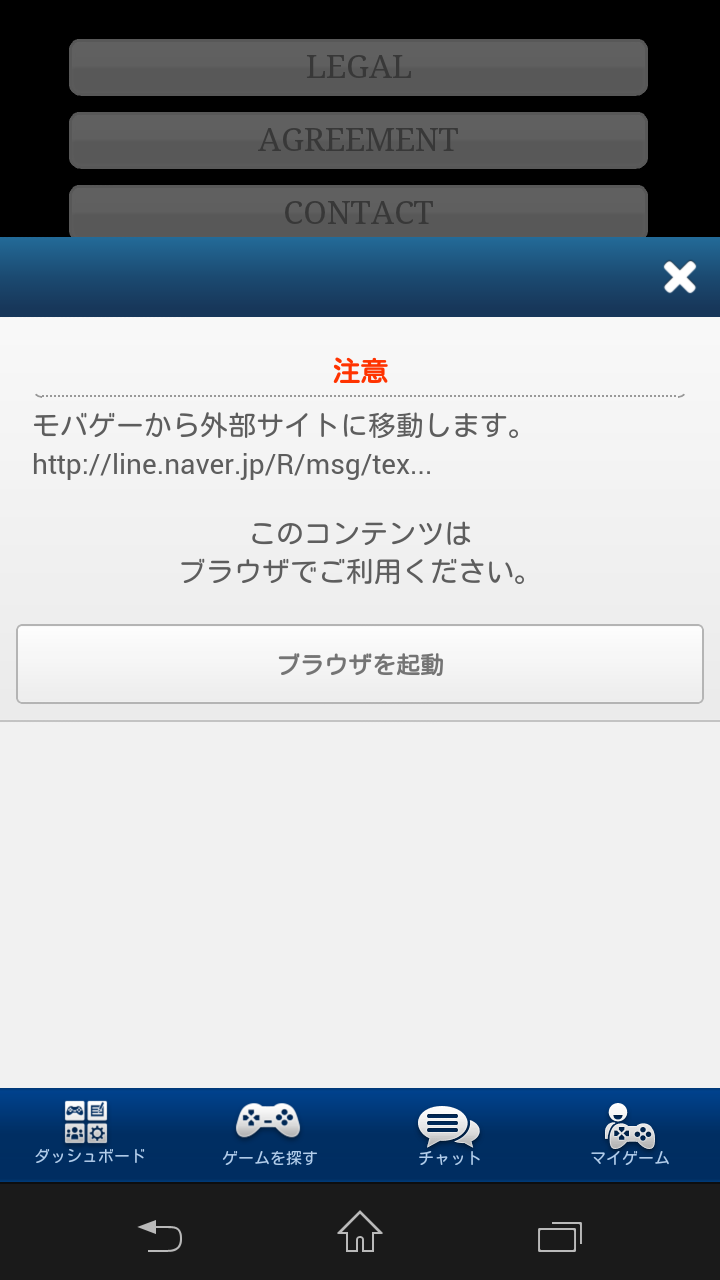
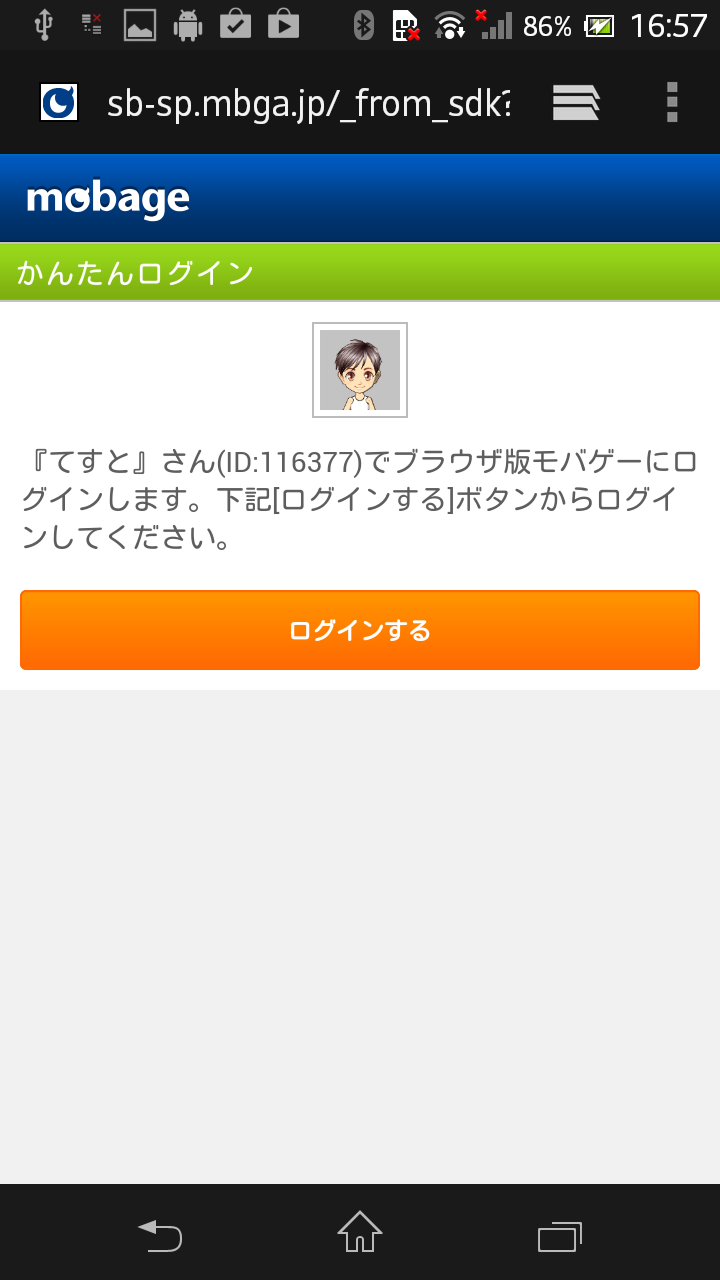
LINE
(If LINE is not installed)
- Confirmation screen will show
- Will move to Google Play store
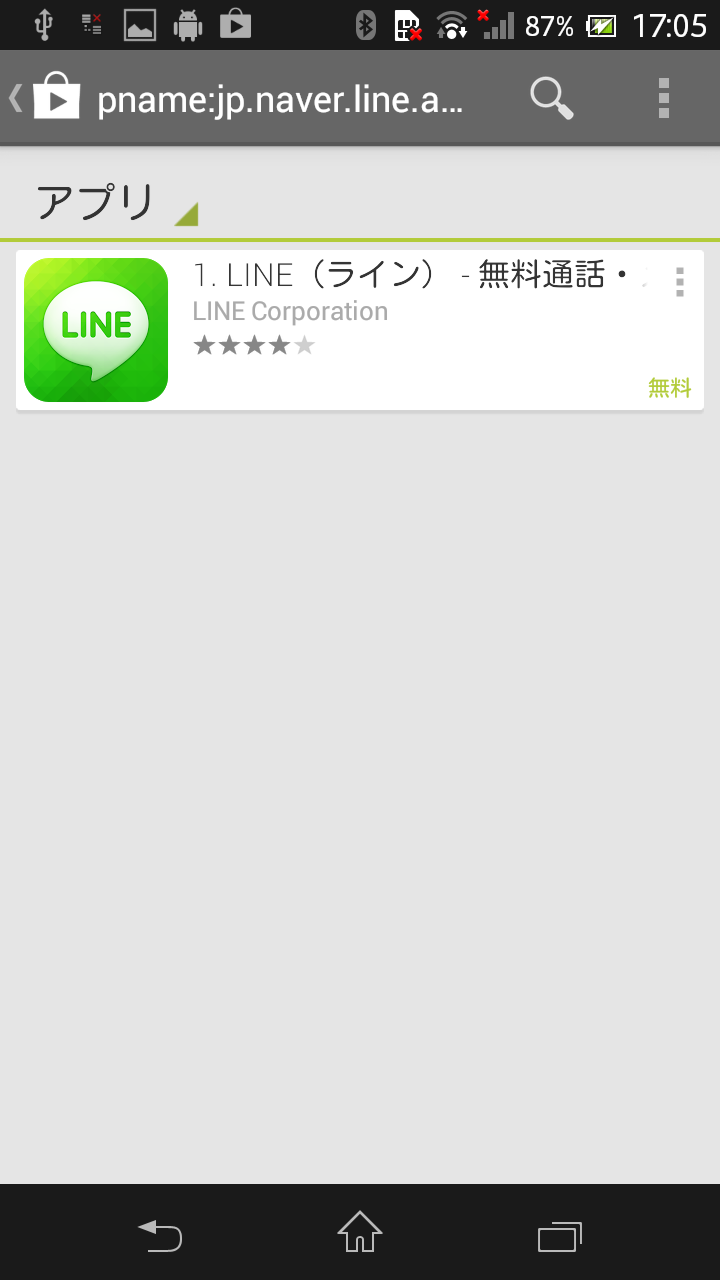
(If LINE is already installed) - LINE application will initialize and move to post selection screen
- Once selected it will move to edit screen
- Post (The sample is when posted to Home)
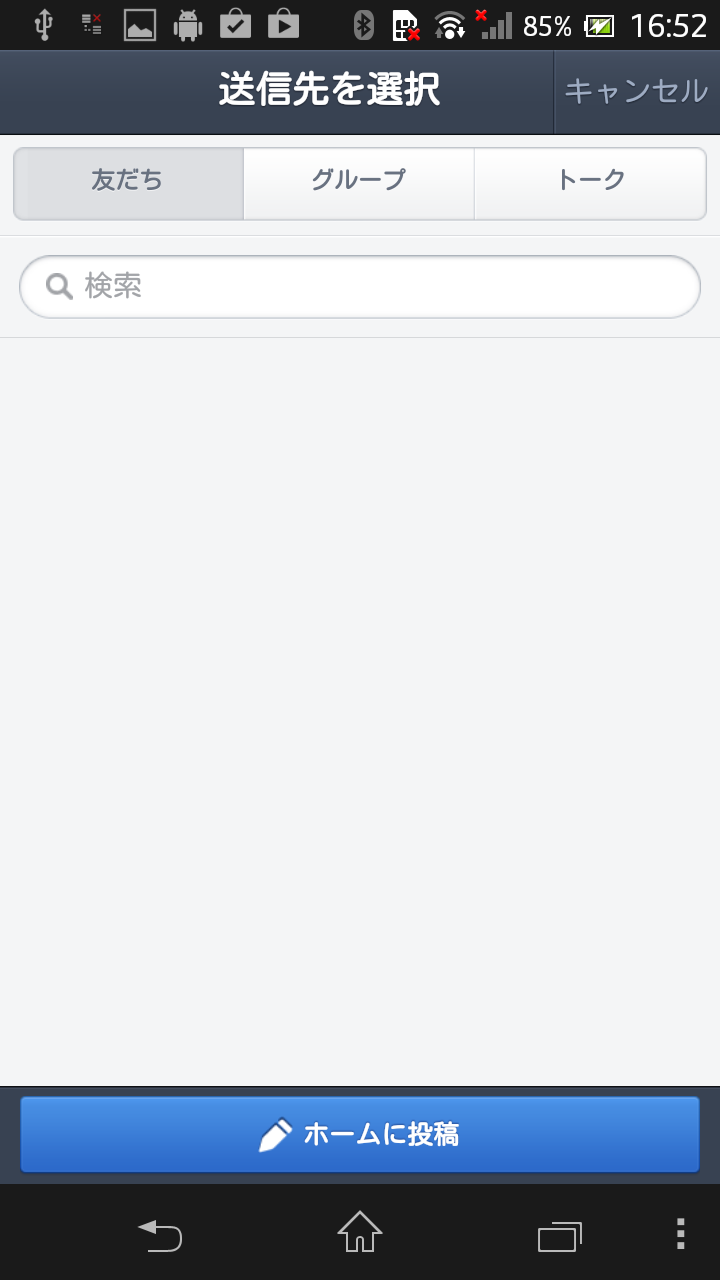
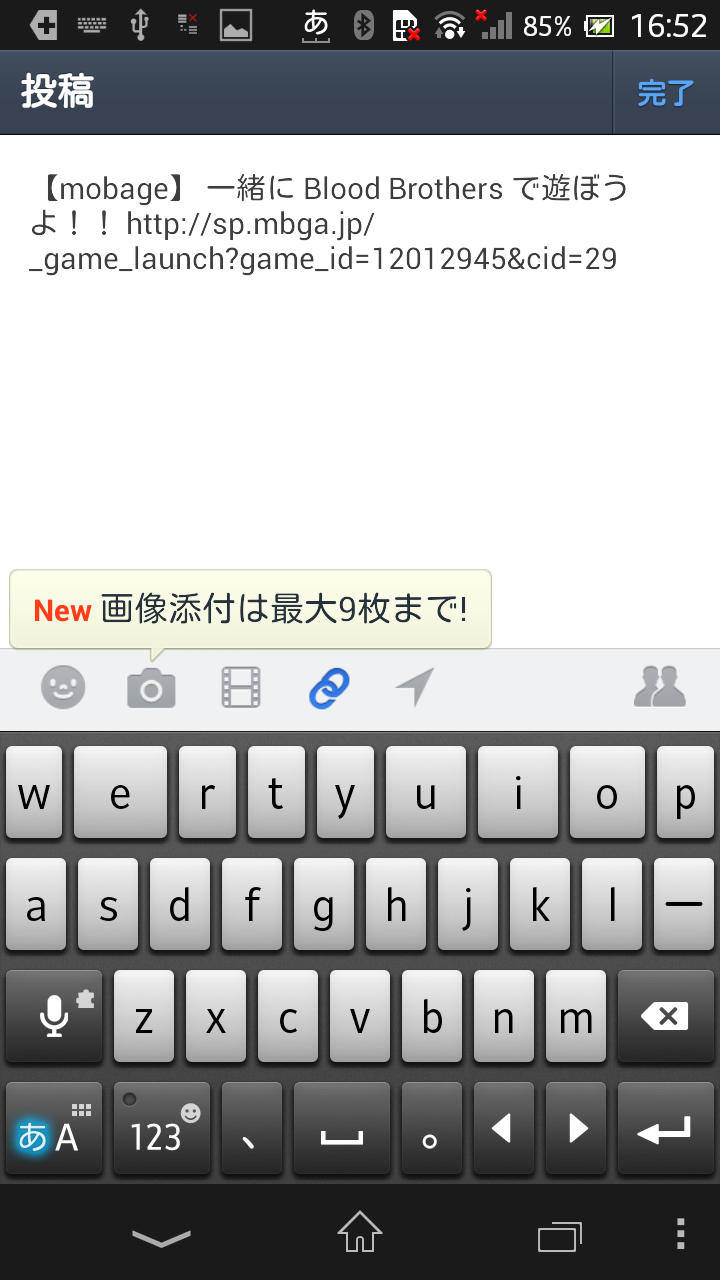
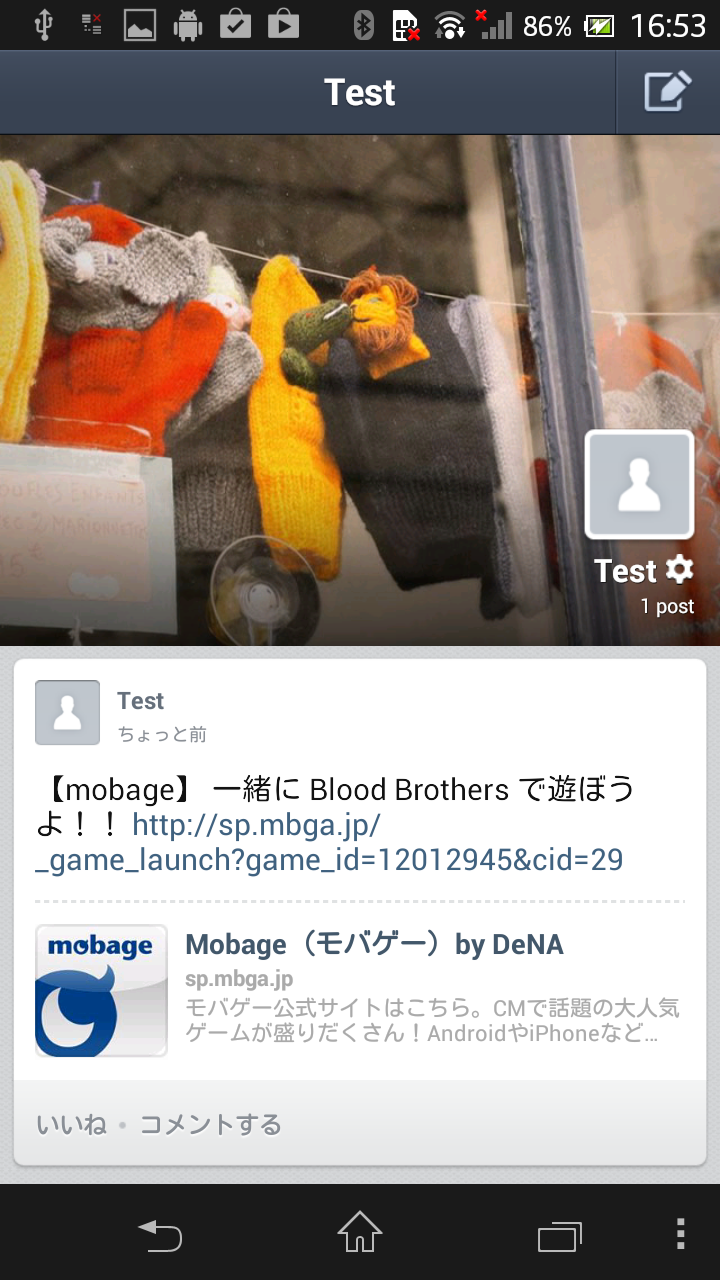
The parameter on shareMessage function will be set as below.
| Parameter | Corresponded Value |
|---|---|
| title | Letters inside【】 |
| message | Letters outside【】 |
| pictureUrl | Not Supported |
Twitter
- Confirmation screen will show
- Will access Twitter by browser
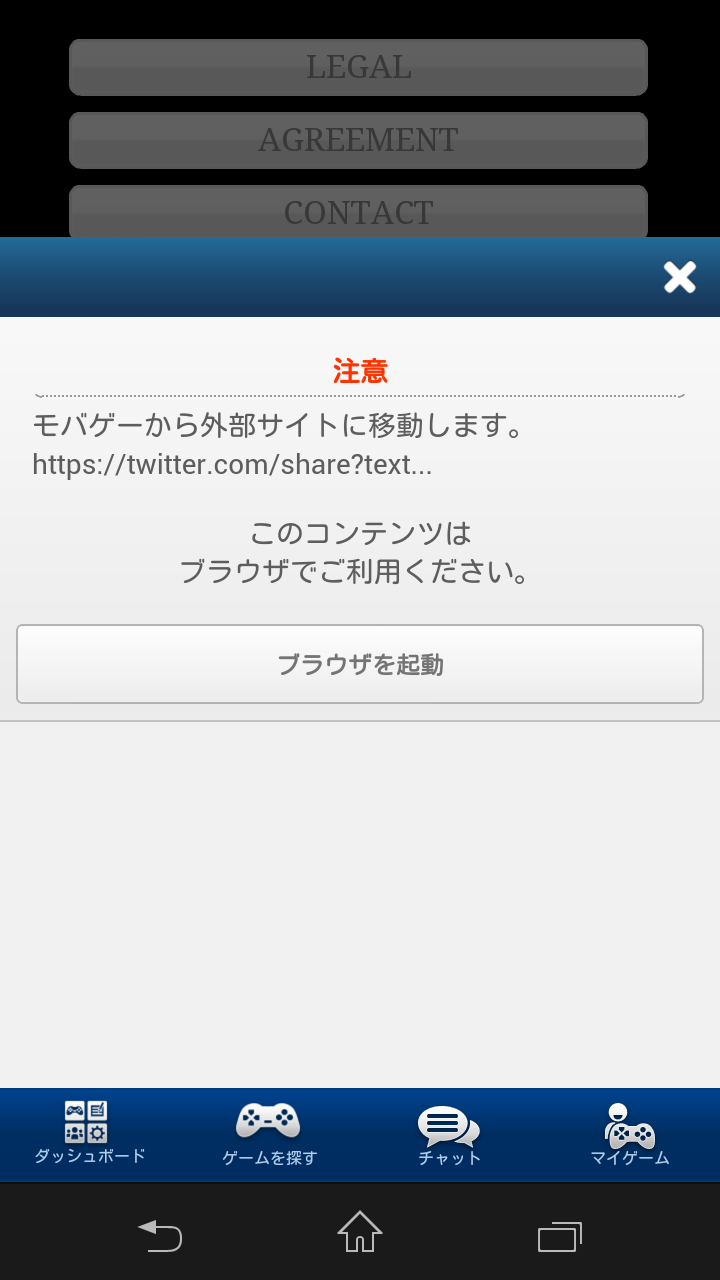
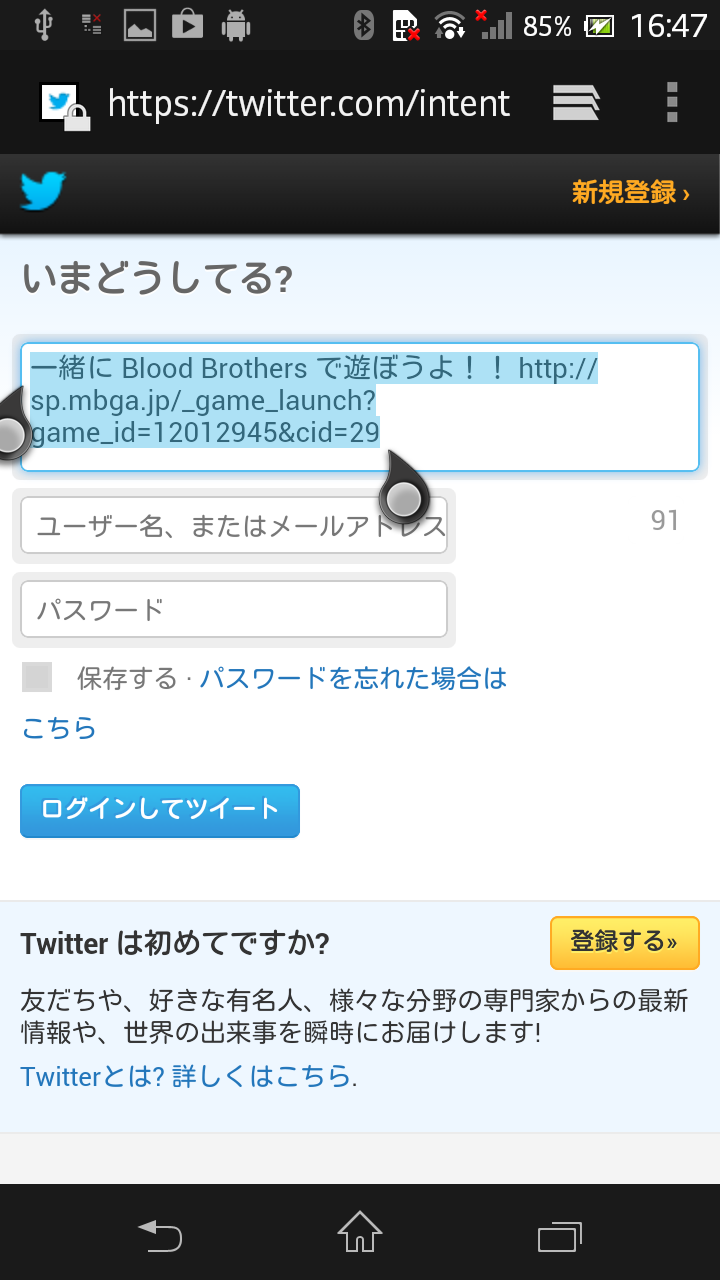
The parameter on shareMessage function will be set as below.
| Parameter | Corresponded Value |
|---|---|
| title | Not Supported |
| message | Body |
| pictureUrl | Not Supported |
Mail
- Will launch default Mail application
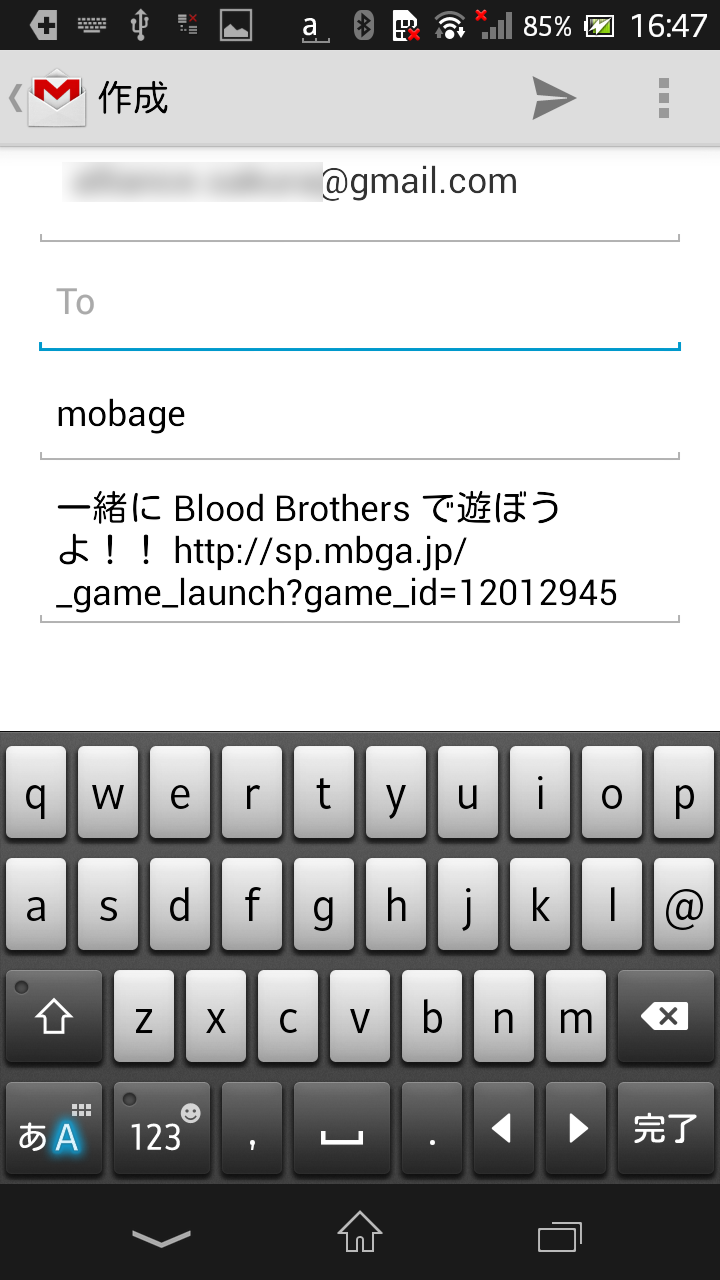
The parameter on shareMessage function will be set as below.
| Parameter | Corresponded Value |
|---|---|
| title | Subject |
| message | Body |
| pictureUrl | Not Supported |
iOS Specificcations
Top screen for shareMessage function
By selecting any of the services below, it will confirm the login status of Mobage browser version. The following login confirmation screen will show incase the user is not logged in.
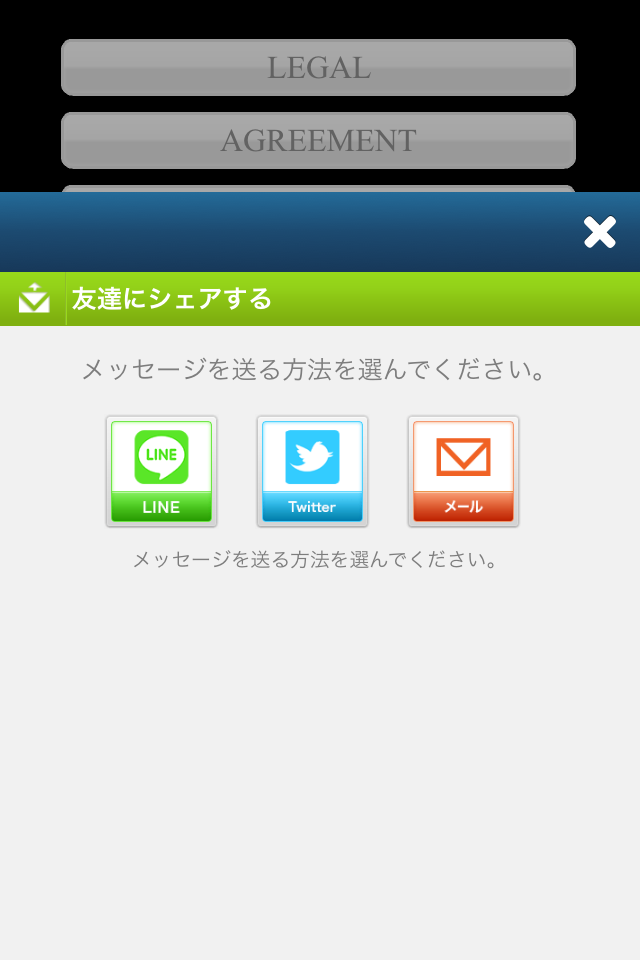
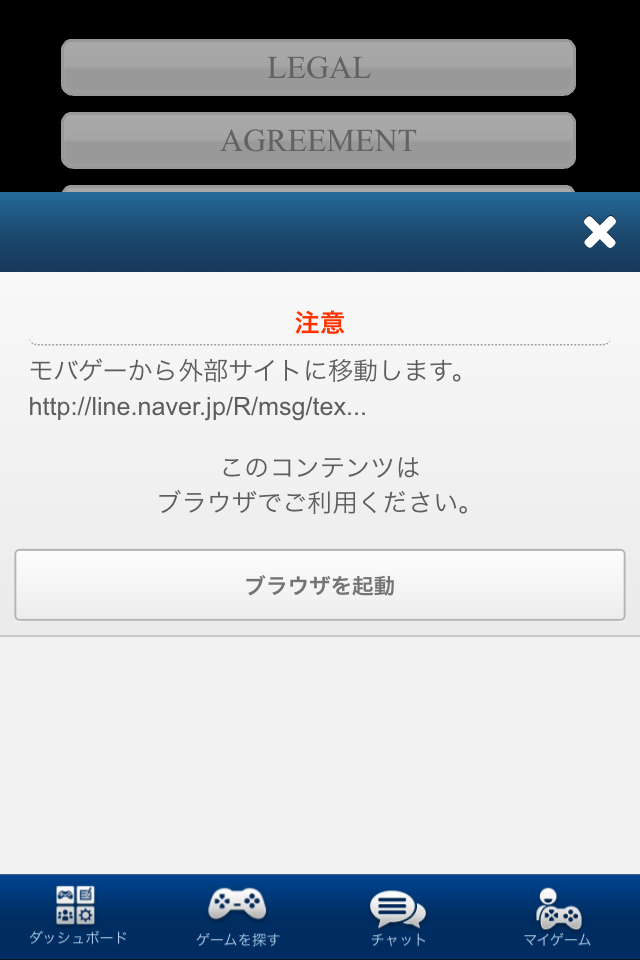
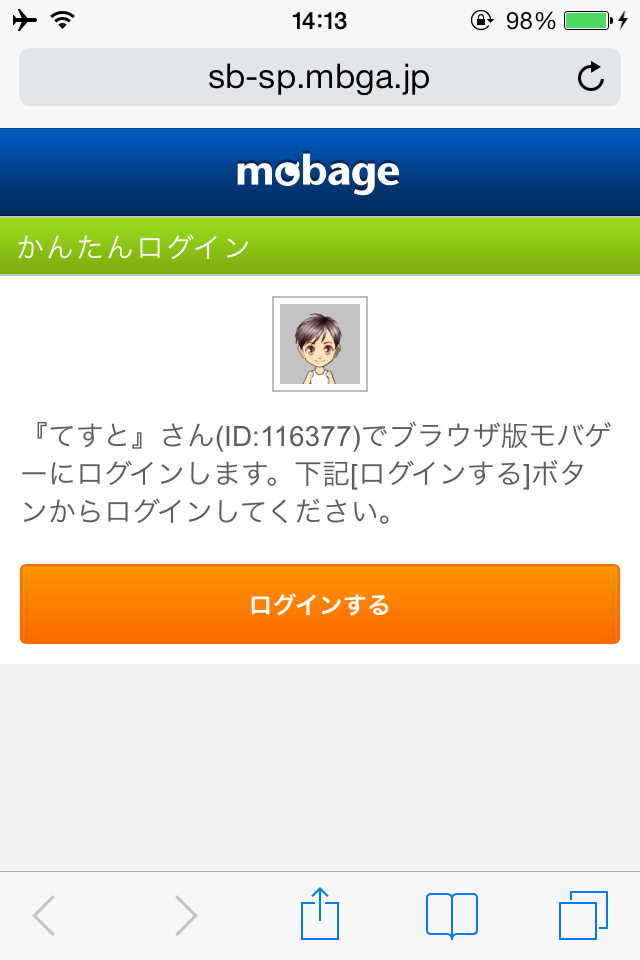
LINE
(If LINE is not installed)
- Confirmation screen will show
- Will move to App Store
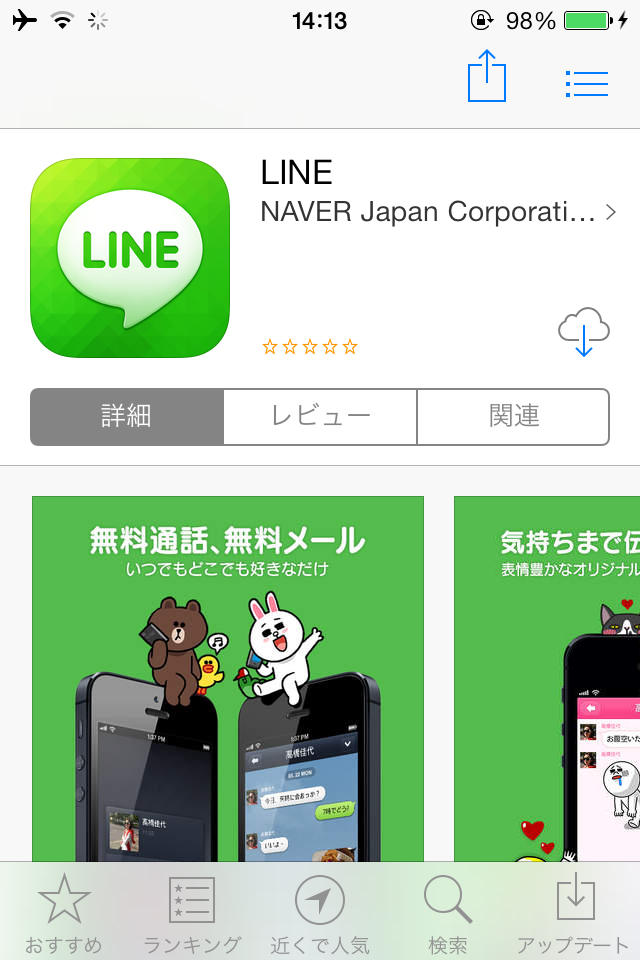
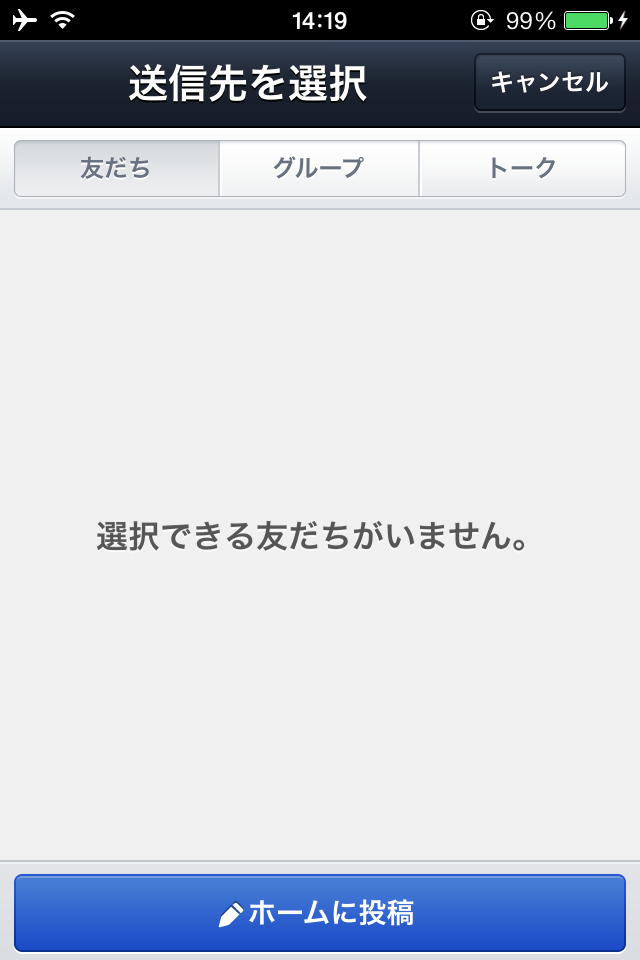
(If LINE is already installed)
- LINE application will initialize and move to post selection screen
- Once selected it will move to edit screen
- Post (The sample is when posted to Home)
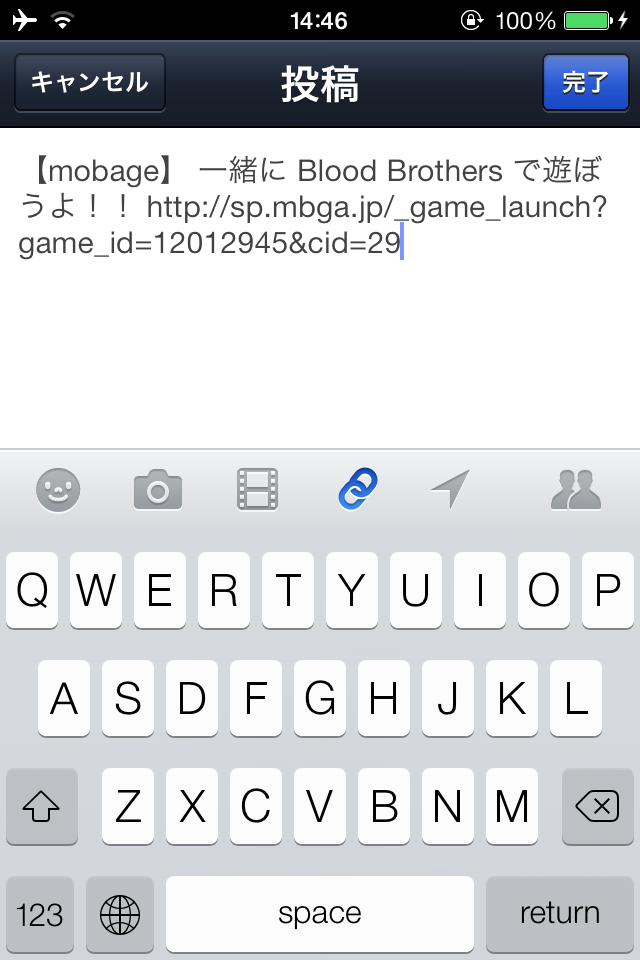
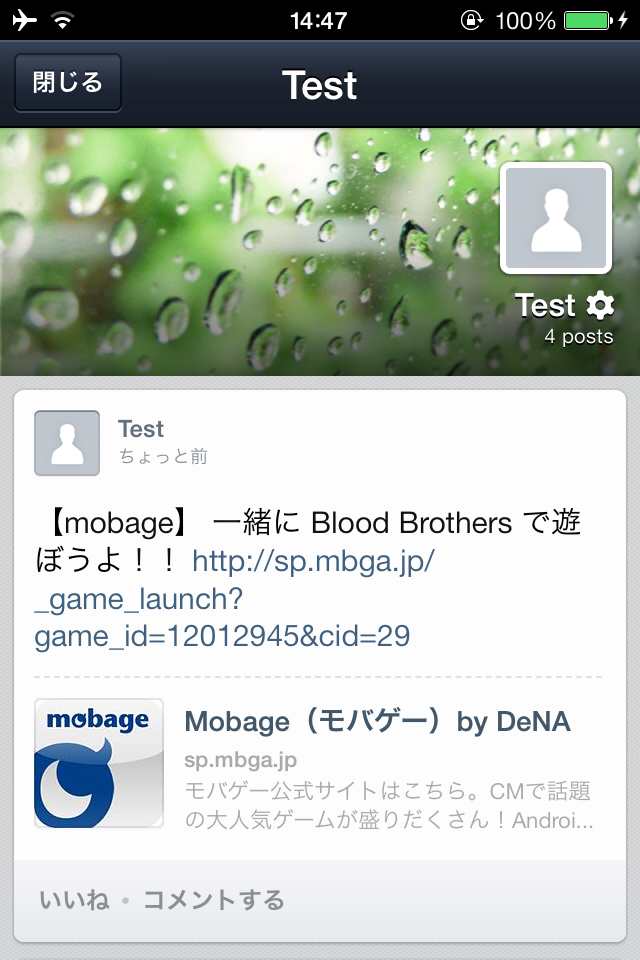
| Parameter | Corresponded Value |
|---|---|
| title | Letters inside【】 |
| message | Letters outside【】 |
| pictureUrl | Not Supported |
Twitter
- Confirmation screen will show
- Will access Twitter by browser
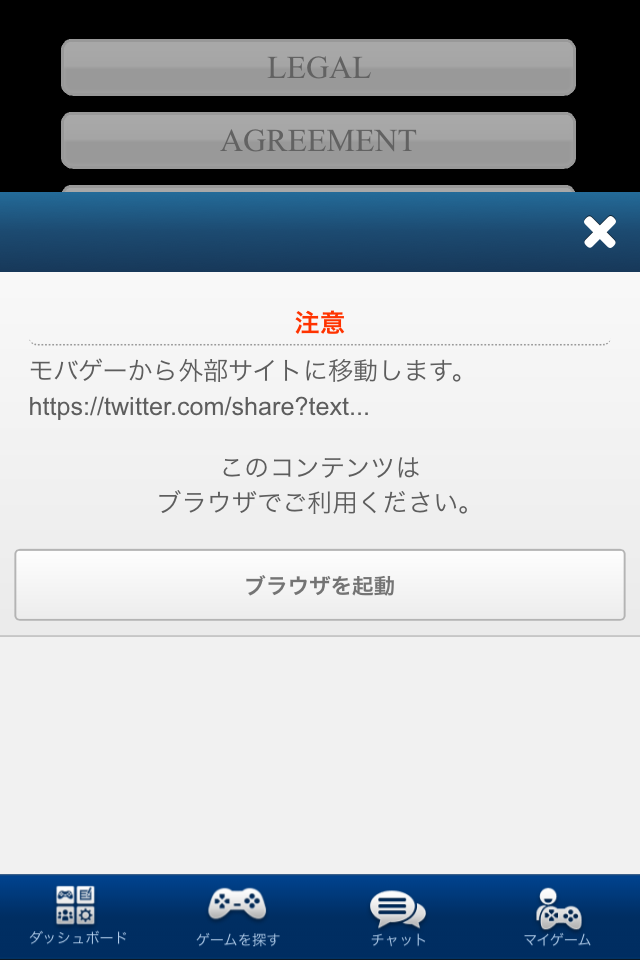
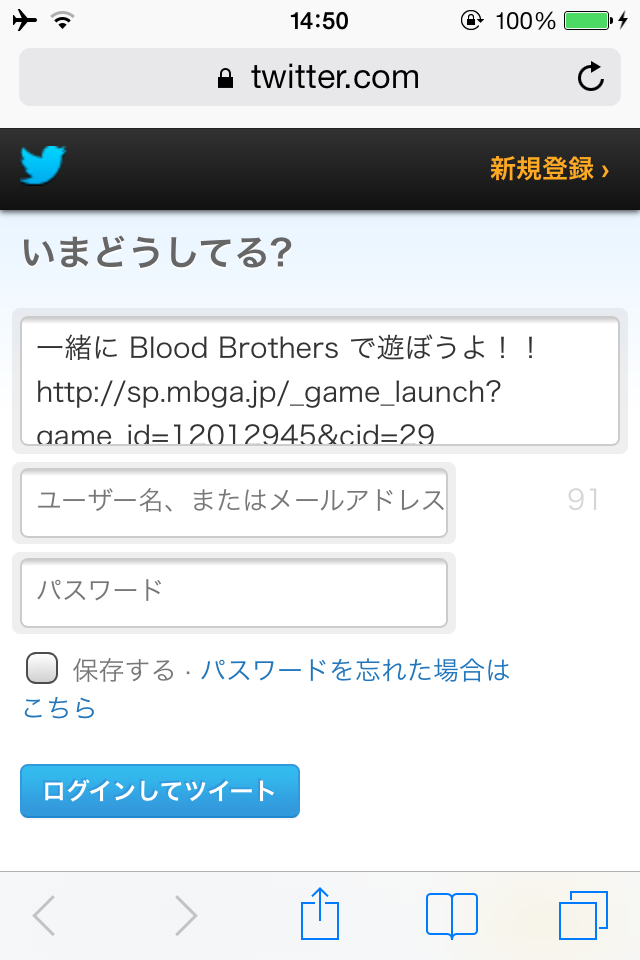
The parameter on shareMessage function will be set as below.
| Parameter | Corresponded Value |
|---|---|
| title | Not Supported |
| message | Body |
| pictureUrl | Not Supported |
Mail
- Will launch default Mail application
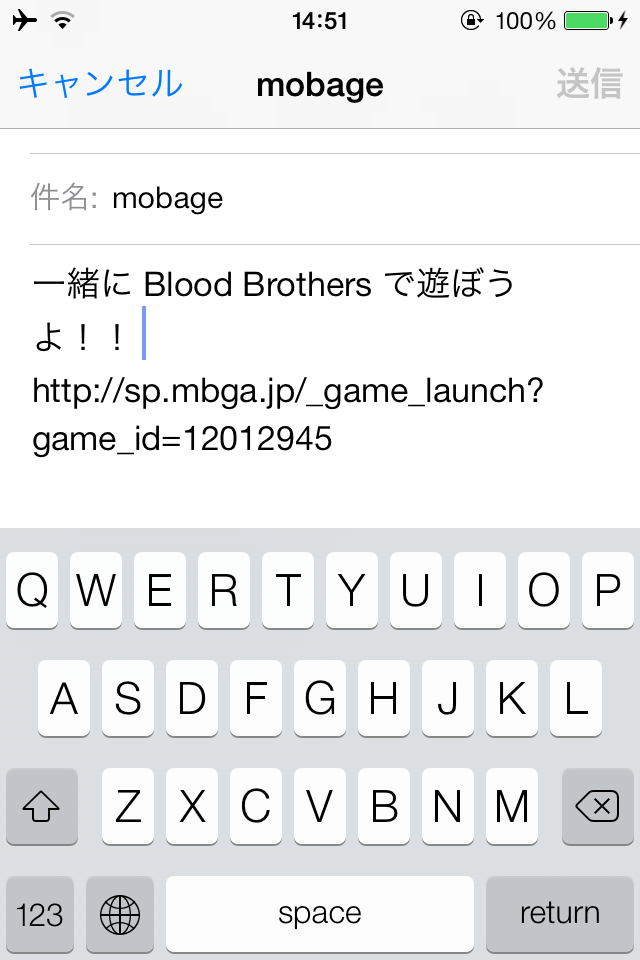
The parameter on shareMessage function will be set as below.
| Parameter | Corresponded Value |
|---|---|
| title | Subject |
| message | Body |
| pictureUrl | Not Supported |
Revision History
- 2013/11/01
- Initial Release