Updating AndApp Publication
You can update “Text information”, “Images”, and “Styles” presented in the app details page on AndApp through “AndApp presented information”.
Also, check the current design kit when updating.
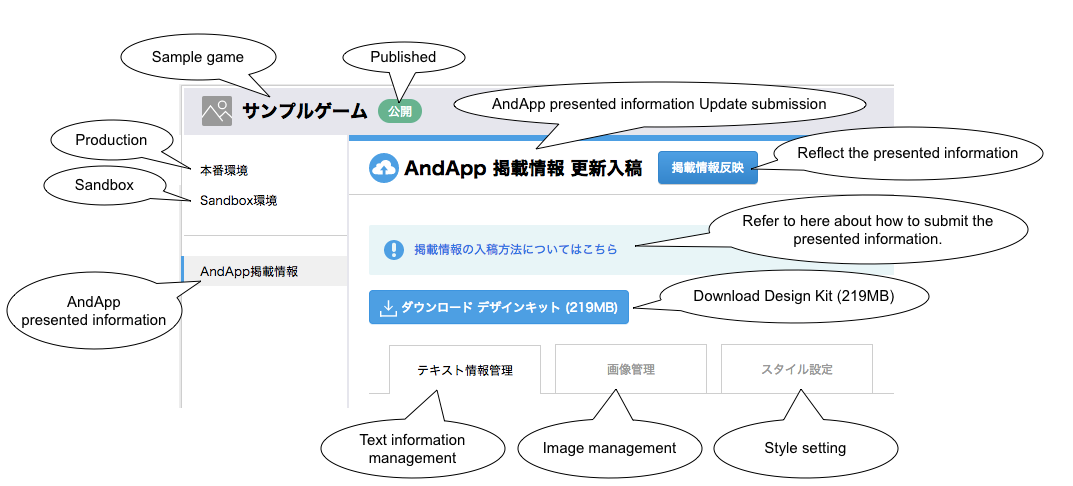
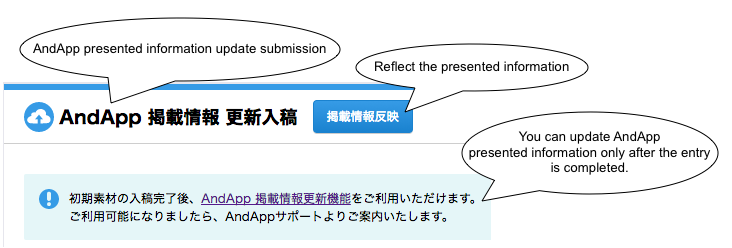
Only a title released once on AndApp can use this function.
If you see like the following screen, it is not published yet on the AndApp. In this case, contact us with e-mail about updating a text, image and style.
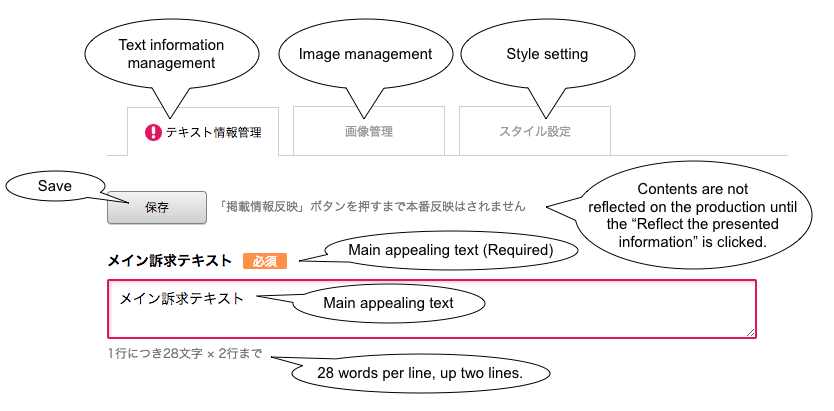
Managing text information
The following information can be edited in the “Managing text information” tab:
| Items | Required | Character limitation | Remarks |
|---|---|---|---|
| Main appealing text | ◯ | 28 characters per line, total 56 characters. | Up to two lines |
| Catchphrase/Original category | 15 characters | Line breaks cannot be inserted. | |
| Description of game | ◯ | 400 characters including line breaks | |
| Recommended environment | ◯ | 200 characters including line breaks | |
| Copyright | ◯ | 100 characters | At least 1 is required. Up to 10. |
If unsaved items are found, the mark is displayed and the appropriate items are indicated in a red frame.
Click the save button to save if there are no problems with the edited contents.
The edited contents are not reflected just by clicking the save button. You have to click “Reflect the presented information” to reflect it on AndApp.
Managing images
The following images can be updated in the “Manage images” tab:
Images are saved automatically after uploading. However, you have to click “Reflect the presented information” to reflect them on AndApp.
Some limitations other than sizes are applied to images. Refer to the guideline (Click here).
Upload images
| Label | File name (Layer group) | Image size | File type | Capacity limitations | Remarks |
|---|---|---|---|---|---|
| A | material_gamelogo | 232 (W) x 48 (H) pixel or 464 (W) x 96 (H) pixel | Transparent PNG | 80KB | |
| B | material_16x9_1120 | Aspect ratio 16 : 9, 1120 x 630 | PNG or JPEG | 600KB | |
| C | material_1x1_512 | Aspect ratio 1 : 1, 512 x 512 | PNG or JPEG | 1024KB | These images are used in various purposes, such as a ranking. |
| D | material_mainvisual_large | 2000 x 614 or 4000 x 1228 | PNG or JPEG | 1024KB | |
| E | material_mainvisual_small | Aspect ratio 16 : 9, 640 x 360 | PNG or JPEG | 250KB | |
| F1 | material_intro_large_01 〜 | 690 x 388 or 1380 x 776 | PNG or JPEG | 480KB | At least 3 images are required. Up to 10 images. * It is not required if you use YouTube videos. |
| G1 | material_intro_small_01〜 | Width of 300 or width of 600 | PNG or JPEG | 120KB | At least 3 images are required. Up to 10 images. * It is not required if you use YouTube videos. |
| H1 | gallery_01〜 | Recommended 640 x 1136, Horizontally long rectangle requires a width of at least 1040. Longitudinally long image requires a width of at least 500. | PNG or JPEG | 250KB | At least 4 images, up to 10 images. |
| I | background | Recommended 1400 x 1000 | PNG or JPEG | 1024KB | |
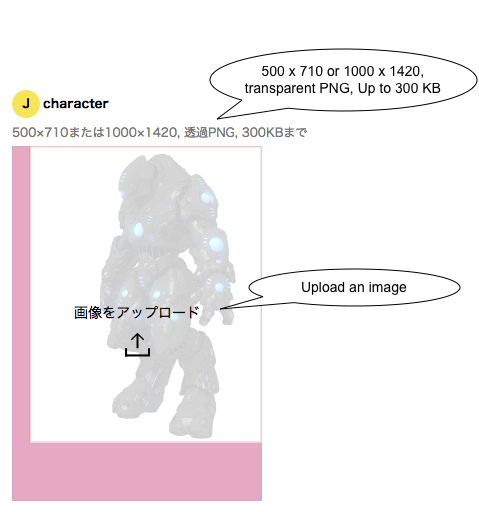
| J | character | 500 x 710 or 1000 x 1420 | Transparent PNG | 1024KB | |
| OGP for Facebook | 1200 × 630 | PNG or JPEG | 300KB | ||
| OGP for Twitter | 506 × 254 | PNG or JPEG | 100KB |
Replacing images respectively
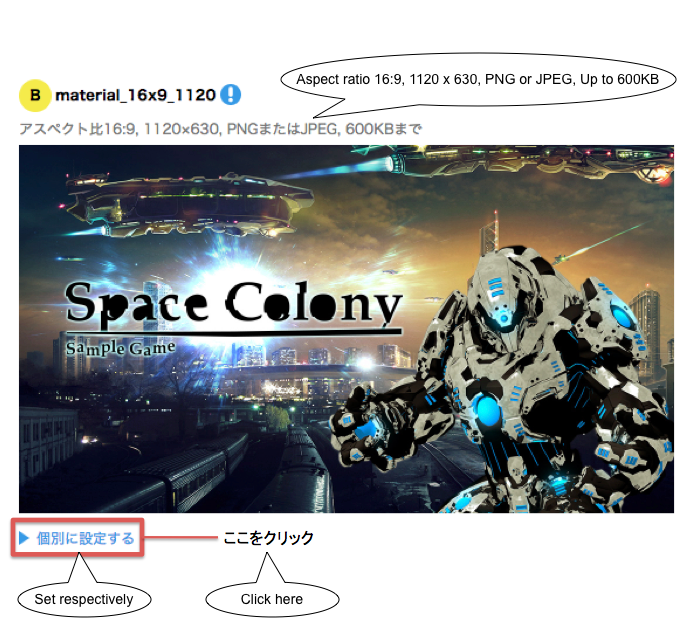
Although images with “B” label are used as the same image in the following locations, they can be replaced respectively.
| Label | File name (Layer group) | Image size | File type | Capacity limitations | Remarks |
| B1 | material_16x9_1120 | Aspect ratio 16 : 9, 1120 x 630 | PNG or JPEG | 600KB | It is to be used as an image above the TOP of the PC version. |
| B2 | material_16x9_960 | Aspect ratio 16 : 9, 960 x 540 | PNG or JPEG | 500KB | It is to be used as an image above the TOP on AndApp client. |
| B3 | material_16x9_640 | Aspect ratio 16 : 9, 640 x 360 | PNG or JPEG | 400KB | It is to be used as an image above the TOP of SP version. |
Safe area
The part other than the area in red on the upload image screen is the safe area.
Various elements can be overlapped in this part. Therefore, ensure that important elements, such as a face, call-out of a character, are not to be placed.
Setting style
The following style can be set in “Set style” tab.
Save any changes as with the text information, and then click “Reflect the presented information” button.
Color information
Color information, such as font color and background color, can be updated in the “Color information” section. You have to click “Reflect the presented information” button to reflect it on AndApp.
Also, each section number corresponds to the number in the guideline (Click here). Therefore, refer to this guideline.
- Text character
- Subtext character
- Button text
- Background of the button
- Background of the button (on mouse over)
- Background of the menu
- Boundary of the menu
- Background of the contents
- Frame of the contents
- Background color
Setting images in the background
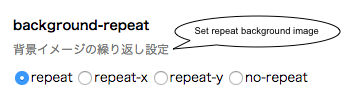
Image repetition in a background and the position of a background image can be set in the “Set background image” section. You have to click “Reflect the presented information” to reflect it on AndApp.
repeat: Display a background image repeatedly in both longitudinal and horizontal direction.
repeat-x: Display a background image repeatedly only in the horizontal direction.
repeat-y: Display a background image repeatedly only in the longitudinal direction.
no-repeat: An image cannot be displayed repeatedly.
Reflecting the presented information
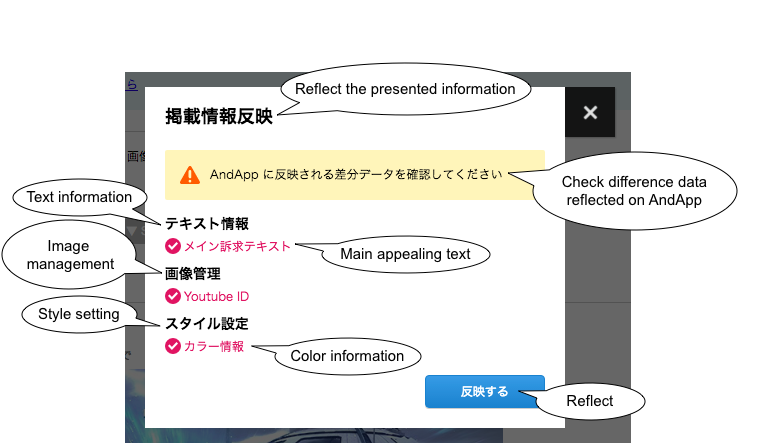
The following screen appears when clicking the “Reflect the presented information” button.
Make sure there is no problem with the reflected contents, and then click the reflect button.
* Note that clicking the reflect button deletes any unsaved information.
Update History
-
August 22, 2017
- Upload image modified
-
June 22, 2017
- Upload image modified
-
June 12, 2017
- Upload image of high-resolution version added
- Description of Safe area modified
-
April 13, 2017
- Description of Safe area added
-
March 15, 2017
- New document created