Registering Products for Payment
What is the AndApp Client Developer Edition?
The AndApp client Developer Edition is an AndApp client designed for developers which has background process functions and support functions for Sandbox development.
For more information on AndApp clients and background process, see here.
The AndApp client Developer Edition can be obtained from the download page in the AndApp Developer Dashboard.
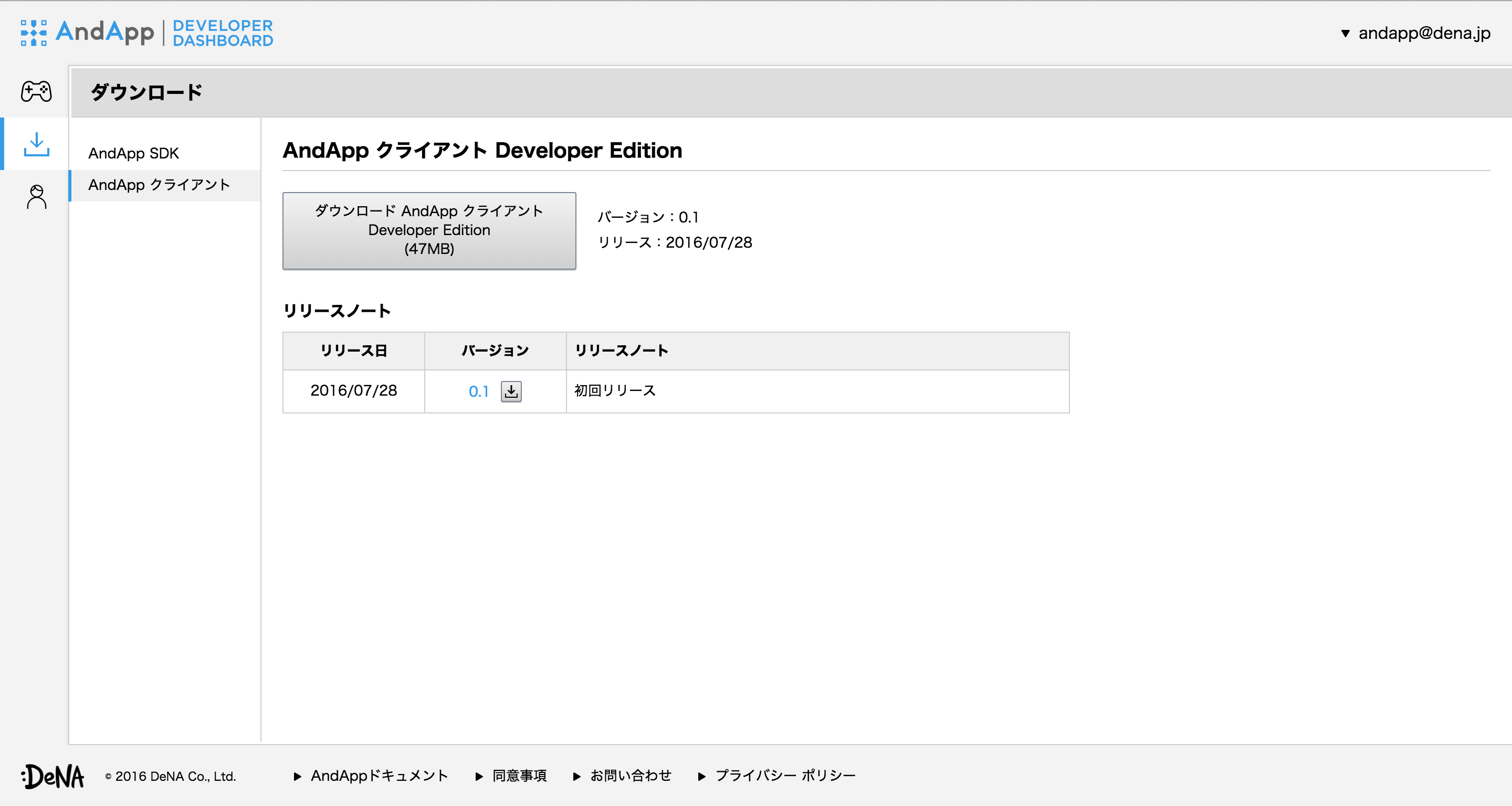
How to set up the AndApp client Developer Edition
When Setup.exe downloaded from the AndApp Developer Dashboard is started, installation of the AndApp Client Developer Edition will be started automatically, and the AndAppDev icon is created on the desktop.
The AndApp client Developer Edtiion is installed in the following PATH.
%LOCALAPPDATA%/AndAppDev
To start-up the AndApp Client Developer Edition, click the AndAppDev icon. 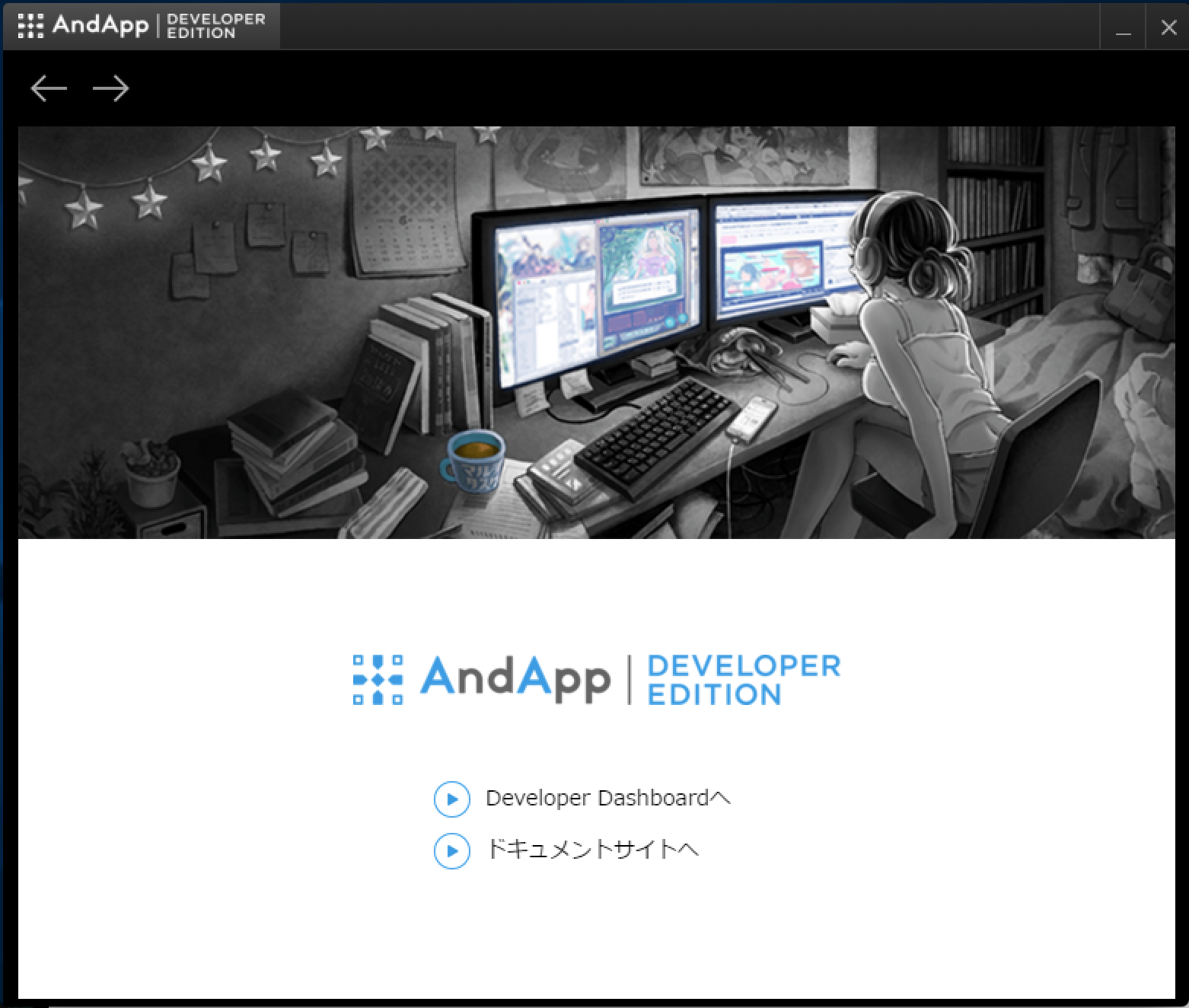
As the AndApp client Developer Edition is launched, the background processes is started.
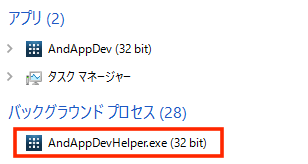
To check whether the background processes are running or not, check the status of "AndAppDevHelper.exe" in Task Manager etc.
Development method using AndApp client Developer Edition
Operate Sandbox applications integrated with the AndApp SDK under the condition where the background processes are active.
If the APIs of the AndApp SDK is called without the background processes are not running, errors will be returned by each API.
In case the background processes are terminated due to some reasons, quit the AndApp Client Developer Edition and restart it.
Development support function
In this section, the development support function exclusively for the AndApp client Developer Edition will be explained.
How to open the menu

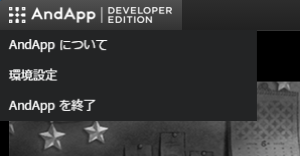
Click the AndApp logo at the upper left corner of the AndApp Client Developer Edition. Then, open the AndApp Client Developer Edition's menu.
How to check purchase history
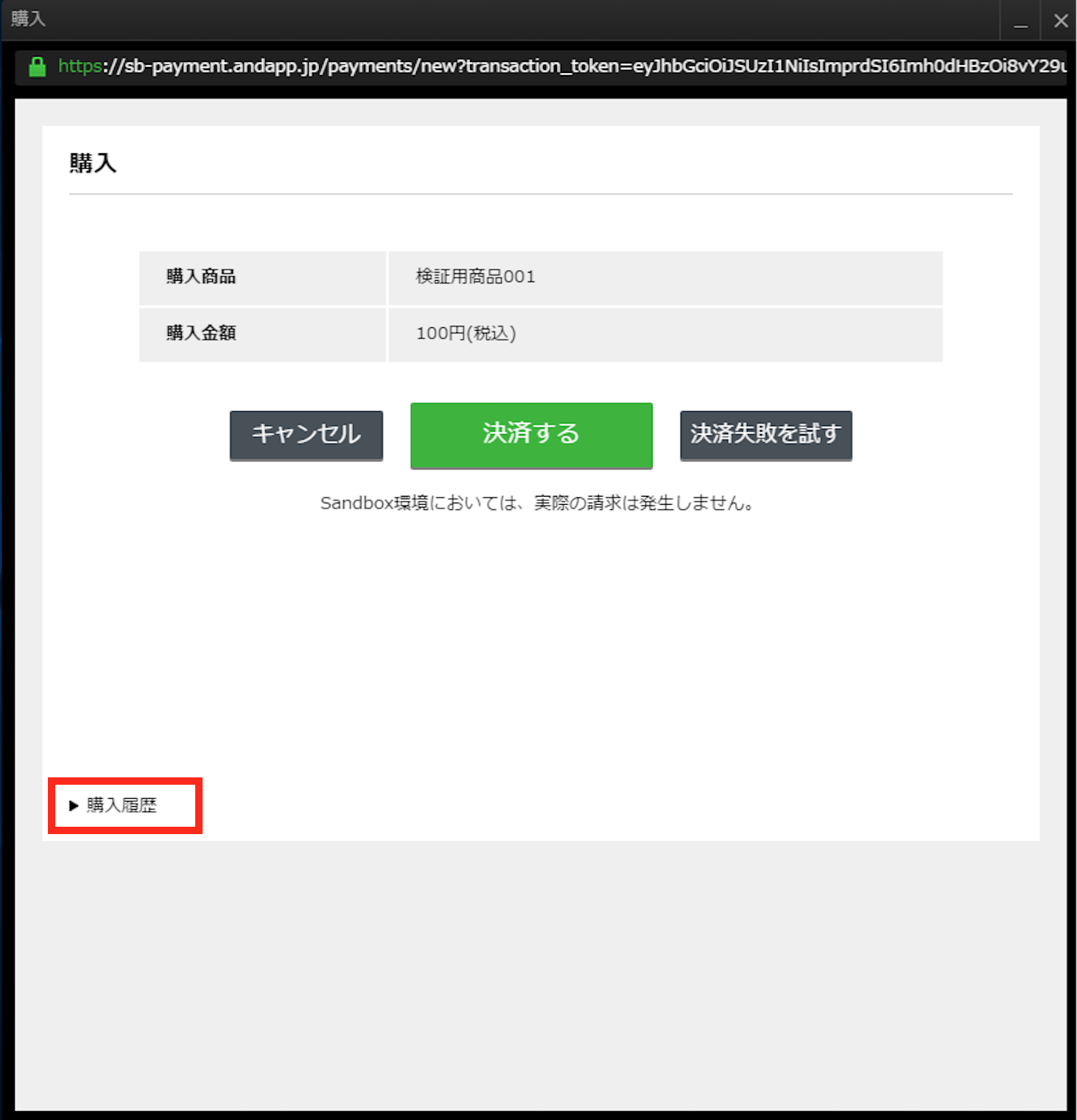
The purchase histories of the AndApp SDK settlement can be found in the link displayed as the 「▶ 購入履歴」(Purchase History) at the bottom of the purchase screen displayed in the AndApp Client Developer Edition.
How to check remote notification functions
For more information on remote notification features, see here.
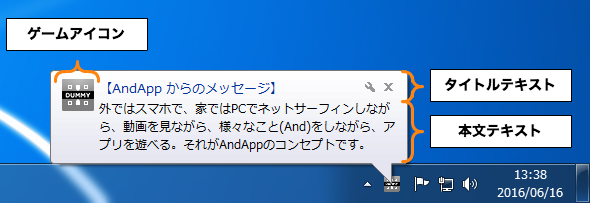
When a remote notification is sent to the Notification Token which is acquired from the AndApp SDK, the behavior varies depending on the types of remote notifications and the state of the application.
| Remote notification type | The state in which the game has not started yet | The state in which the game is already activated |
|---|---|---|
| Notification on desktop |
|
|
| Data notification only |
|
|
About the remote notification function differences of the AndApp client for end-users
AndApp client and AndApp client Developer Edition for end users have the following differences in the remote notification functions.
- For the AndApp client for end users, the application is launched when notifications as clicked, while but this behavior does not work in the AndApp client Developer Edition.
- For the AndApp client for end users, the application icon is displayed, however, a dummy icon is displayed in the AndApp client Developer Edition.
- Processes in case title is omitted at sending notifications
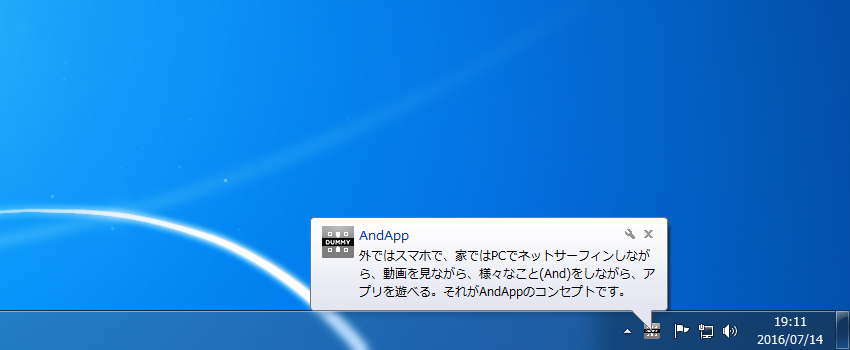
- For the AndApp client for end users, the abbreviated version of the application name or application name is displayed, however, "AndApp," a dummy character string, is displayed in the AndApp client Developer Edition.
-
Notification settings
Currently, notification setting function is not available. It will be provided in future updates.
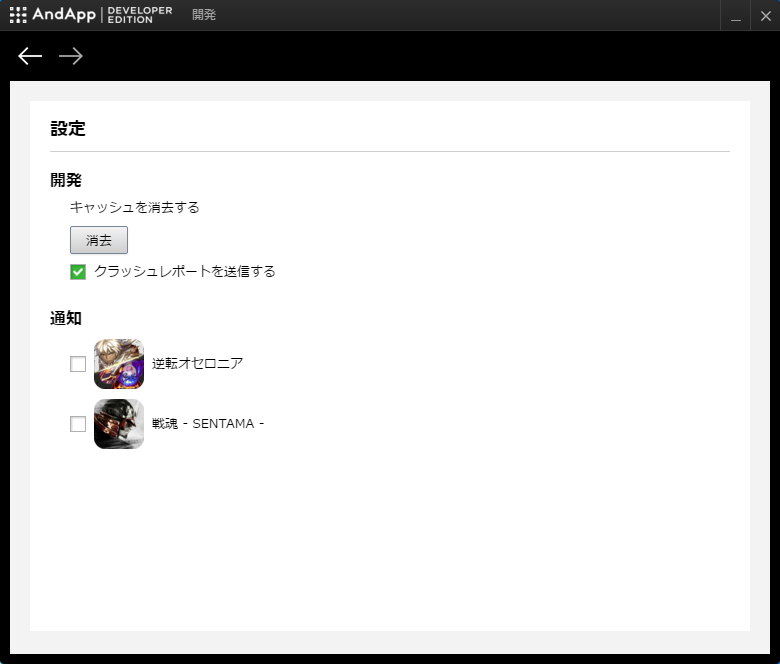
Like the AndApp client for end users, the AndApp client Developer Edition can enable/disable the reception of notification for each application.
Open「設定」(settings) in the menu of the AndApp Client Developer Edition, and check the「通知設定」(Notification Settings) column, where a list of applications that executed RegisterForNotifications on the operational terminal and a check box is displayed.
About the difference from the AndApp client for end users
For the AndApp clients for end users, the icons and application titles registered in AndApp Developer Dashboard are displayed, but in the AndApp client Developer Edition, dummy icons and applications are displayed.
Update method
While automatic updates are enabled for the AndApp clients for end users, automatic updates are disabled for the AndApp Client Developer Edition, considering the version comparison verification testing.
To update, download and install from the AndApp Developer Dashboard.
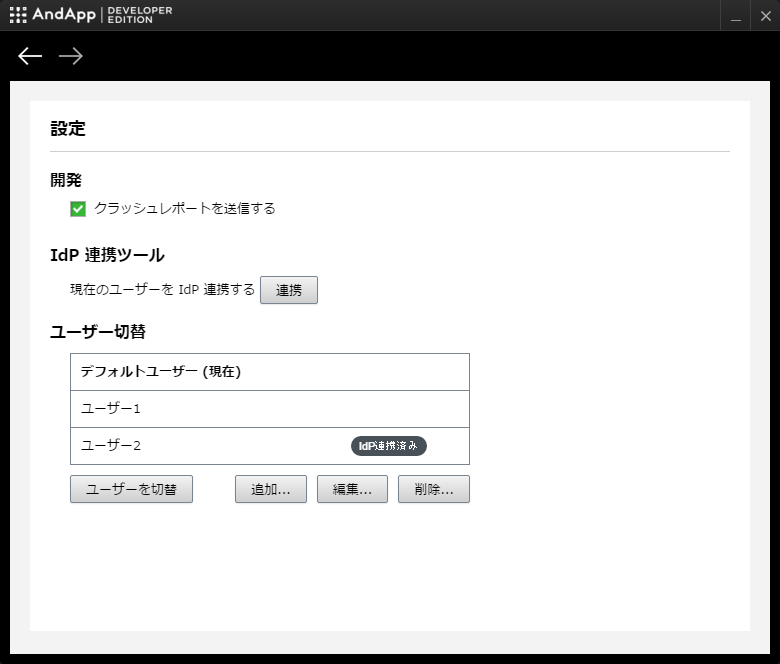
How to use the user switching function
As a development support function dedicated to the AndApp client Developer Edition, it provides a function to register and switch multiple player IDs acquired from AndApp users and SDK.
It is a function provided from AndApp Client Developer Edition 0.2.0.
In switching users, the following concepts exist.
- Current user
- Indicates the users currently logged in. The user type will be changed after restarting the application once the "Switch user" button is pressed while a different user from "Current user" is selected.
- Selected users
- The selected state (the cells are filled in blue) by clicking the listed users.
- Default user
- Special users created at the time of installation. Default users can not be deleted.
Please note that the current user will be automatically switched to "default user" automatically when restarting the OS or restarting AndAppDevHelper.exe.
The functions provided are as follows.
- User switching
- You can change the current user from the "Switch user" button to the currently selected user.
- When you switch users, the AndApp Client Developer Edition will be terminated.
- Errors occur if the users already selected are selected.
- Add a user
- New users can be added from the 「追加」(Add) button.
- When adding new users, display names can be used.
- Up to 20 users, including the default users can be added.
- Edit display names of users
- Click the 「編集」(edit) button to change display names of the currently selected users.
- Delete user
- Click the 「削除」(delete) button to delete the currently selected users.
- You can not delete the default user and the current user.
- IdP cooperation
- From the 「連携」(link) button, the current users can be put into the IdP linkage state. *The IdP linkage function is a function to simulate a linked state. The value returned from the Player API is changed.
- When the current user is already linked with IdP, the 「連携」(link) button is displayed as「連携済」(linked) and it can not be clicked.
Change log
- 2016/08/23
- A description about the user switching function and IdP linkage function was added.
- 2016/07/28
- Create New